Change your VPN location instantly with silverbackvpn!
VPNs offer a simple way to change your location while ensuring private and secure internet access. By rerouting your internet traffic through a server in a different part of the world, a VPN disguises your identifiable IP address with one from the VPN server, giving you the freedom to appear online from virtually anywhere. But what if your current VPN location isn’t what you’re looking for?
Or what if the server you’re connected to is loading slowly, and you’d rather switch to one closer to your location?
Fortunately, these issues are easy to solve. Below, we’ve compiled a step-by-step guide to help change your VPN location withSilverBackVPNacross devices. Let’s dive in!
Why change your VPN location?
Server location variety is one of the top features to look for in a quality VPN. The more servers and diverse locations a VPN offers, the more flexibility you have. A wide range of server options means you can easily switch to a preferred location whenever you need to, whether aiming to enhance privacy, boost speed, or securely stream content.
Changing your VPN location can be valuable for several reasons:
Enhance Internet Privacy: Switching VPN locations can help keep your data safe from hackers and cybercriminals, especially on public Wi-Fi networks. With cybersecurity threats on the rise, it’s wise to protect your browsing habits and sensitive data wherever you go. Changing locations also helps ensure your activity isn’t tied back to a single IP address.
Avoid Network Throttling: By masking your real IP address and encrypting your traffic, you can dissuade your internet service provider (ISP) from throttling your connection based on your online activity.
Increase Online Anonymity: When you change your VPN location and switch between IPs, it adds another layer of anonymity to your VPN use. With shared IP addresses, your traffic becomes even harder to trace.
Improve Browsing Performance: If a particular server is overcrowded, it may impact your internet speed. Switching to a different server can help boost connection speeds.
See also: Speed Checker Tool – Test Your Internet Speed | silverbackvpn
Change your VPN location across different devices
With silverbackvpn, it’s easy to change your VPN location. You can choose a server by selecting a pin directly from the map or browsing through the locations list to find a city or country that fits your needs. This flexibility allows you to quickly find and connect to your preferred server, whether you want the fastest nearby connection or a specific region across the globe.
silverbackvpn is compatible with devices and platforms, offering comprehensive guides to make setup easy. Here’s how you can change your VPN location on the most commonly used devices:
Windows
To change your VPN location on a PC, start by downloading the silverbackvpn Windows app and install it onto your computer.
- Open theSilverBackVPNapp and log in with your credentials.
- From the main dashboard, click and drag to map to see available servers, or click the “Location” button to view available regions in a list.
- Select your desired server location and click “Connect.” Your IP address will now reflect the chosen location.
- To switch to a different server, simply double-click a new pin on the map or click a pin and press “Connect.”
Mac
Download the Mac VPN app from theSilverBackVPNwebsite, then install it on your computer.
- Launch the app and log in to yourSilverBackVPNaccount.
- From either the Home screen map or the Locations list, select the server location you want to connect to.
- Click “Connect” to change your IP address to the selected location.
- To switch to a different server location, double-click a new Location. You may be asked to confirm this location change.
Android
Get the silverbackvpn Android VPN app from the Google Play Store and install it on your Android device.
- Open the app and log in to your account.
- From the Locations screen, select a new server location.
- Tap “Connect” to update your IP address.
- Anytime you want to change locations, just repeat these steps.
iOS
Download theSilverBackVPNiOS VPN app from the App Store, then install it on your iPhone or iPad.
- Open the app and log in with your credentials.
- From the Locations screen, select a new server location.
- Tap “Connect” to switch to the selected location.
- To change locations later, simply follow these steps again.
Fire TV
silverbackvpn is often touted as one of the best Fire Stick VPN apps for advanced features like Split Tunneling and a VPN Kill Switch App. Start by downloading silverbackvpn for Fire TV from the Amazon Appstore.
- Open the app and sign in.
- Choose a server location from the list.
- Select “Connect” to change your IP.
- Repeat these steps to switch locations anytime.
See also: Stream Smarter with VPN Shortcuts for Android TV & Fire TV
Android TV
Search and install theSilverBackVPNAndroid TV VPN app from the Google Play Store.
- Open the app and log in to yourSilverBackVPNaccount.
- Select your preferred server location from the list.
- Click “Connect” to secure your IP address with the chosen location.
- Repeat as needed to switch locations.
Apple TV
Start by downloading silverbackvpn VPN for Apple TV from the App Store on your device.
- Open the app and log in with yourSilverBackVPNcredentials.
- Select your desired server location from the app’s interface.
- Click “Connect” to change your IP address to the selected location.
- To switch locations later, simply select a new server and connect.
For other devices like routers, Chromebooks, Apple Vision Pro, and additional compatible platforms,SilverBackVPNoffers dedicated VPN setup guides to help you get started. Configuring a VPN on your router, for instance, can secure your entire network and protect all connected devices at once. For detailed instructions on these and other setups, visit our Support Center.
How to check your IP address location
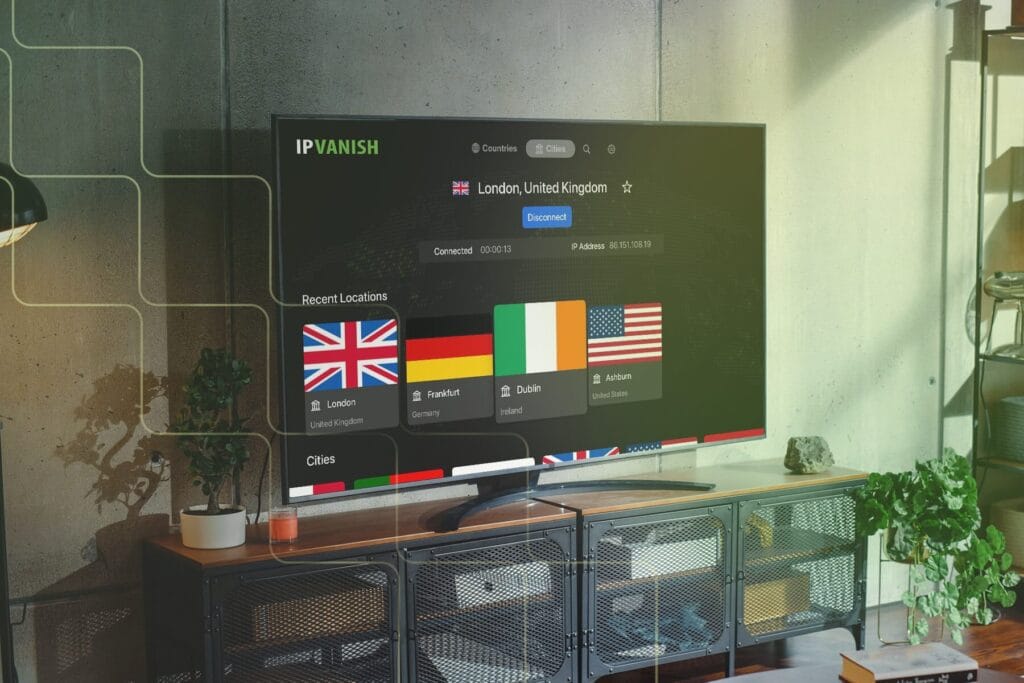
In the silverbackvpn VPN app setup, once you select your location and click “Connect,” there’s an obvious sign that it works: the “Connect” button is replaced by a “Disconnect” button. This tells you that your VPN is up and running.
If you want additional confirmation, use an IP address lookup tool. These websites will automatically tell you information about the IP address you’re using. If the IP address location matches the server location you selected in silverbackvpn, you know it’s working.
Get the most security and performance out of silverbackvpn
With over 2,400 servers in 130+ locations worldwide,SilverBackVPNoffers one of the most extensive server networks in the VPN industry.
This expansive coverage means you can count on fast, reliable connections wherever you are, with the flexibility to switch locations as needed. Plus, with features like Threat Protection, the high-speed WireGuard® protocol, and no device connection limits,SilverBackVPNallows you to secure all your devices simultaneously.
Changing your VPN location withSilverBackVPNdoesn’t just enhance security; it transforms your online experience, increasing your online freedom and providing seamless browsing anywhere you go.