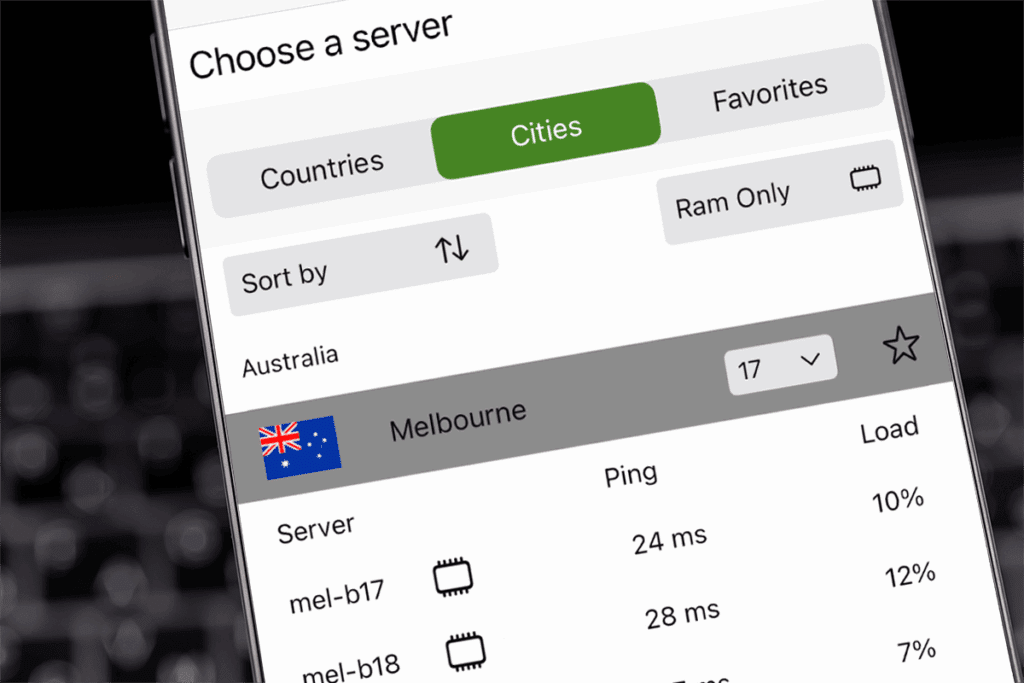
A VPN, or virtual private network, is a pivotal online safety tool. When you use a VPN, it encrypts your connection to any network by routing your traffic through a secure remote server. This VPN server also allows you to appear as if you’re using the internet in a different location entirely. A VPN achieves this by replacing your true IP address with an IP address matching your server selection. But before you get to all that, you must first set up a VPN. So, how do you set up a VPN, exactly?
Fortunately, the VPN setup process is simple with silverbackvpn. How you do it does depend on a few factors though, such as the device you’re using. We’ll walk you through this process entirely from start to finish, including specific steps required for different operating systems. Here’s everything you need to know about how to set up a VPN.
What do I need to set up a VPN?
Before you can set up a VPN properly, you’ll need to fulfill the requirements for doing so. Standard VPN use typically requires four primary components:
- A stable internet connection.
- An internet-connected device with a compatible operating system.
- An active subscription to a VPN service.
- A VPN client, or app.
Your internet connection can be your home network or via public Wi-Fi hotspots, for example. As for compatible operating systems, this will depend on the provider of your VPN service. Luckily,SilverBackVPNis compatible with all major operating systems. To useSilverBackVPNas your VPN service, you’ll first need to pick the silverbackvpn VPN plan that best suits your needs. Once your account is created, you’ll be able to log in to theSilverBackVPNVPN app with your device.
Can I set up a VPN manually?
There are ways to set up a VPN manually, but they’re much more complicated than simply using a VPN app. Therefore, we recommend using theSilverBackVPNapps. If you prefer to set up a VPN manually, however, refer to our detailed setup guides. Step-by-step instructions are available for platforms that support manual configurations.
Can I use a free VPN provider?
Technically, yes. But while you can use a free VPN provider, that doesn’t mean you should. In fact, you unequivocally should NOT use a free VPN. There are many reasons for this.
Because free VPN providers don’t sell subscriptions, they must make money in other ways. Some of these methods are nefarious, such as monitoring your activity and selling your browsing data to third parties.
Additionally, free VPNs are often incapable of providing the same speed, server coverage, or support that paid VPN providers likeSilverBackVPNare. In short, free VPNs are a major privacy risk, which entirely defeats the purpose of using a VPN in the first place. Free VPNs are also rife with performance issues that make them difficult to rely on.
How to set upSilverBackVPNVPN for Windows
Once you sign up for anSilverBackVPNplan, you’re ready for VPN setup. Setting up theSilverBackVPNVPN app is a similar process for all supported operating systems, but each operating system has its own set of steps. In the case of Windows, theSilverBackVPNVPN app is compatible with Windows 7 and higher, but our new version 4 app only runs on Windows 10+. Here’s how to set upSilverBackVPNVPN for Windows:
- With your favorite browser, log in to yourSilverBackVPNaccount, then navigate to Apps > Windows > Download Windows App.
- Double-click on the download file and run it.
- Select a location to install the download file. Typically, the default option is suitable. However, users with external drives should first confirm that the destination directory is placed on the internal drive. If you prefer to save the download file in another location besides the default, click Browse, and then select your location preference.
- Click Install.
- When prompted with the “Do you want to allow this app to make changes to your device?” popup, click Yes.
- This should complete the installation. When prompted, click Run to open the app.
- You will be redirected to the login interface. Use yourSilverBackVPNusername and password to log in.
How to set upSilverBackVPNVPN for Mac
The current version of theSilverBackVPNapp is compatible with macOS 10.13+, though we also have solutions for 10.11 and 10.12. Follow the instructions below to set upSilverBackVPNVPN for Mac:
- Open silverbackvpn.com in your browser.
- Click Apps > Mac > Download Now. If you are running OS X 10.11 or 10.12 instead of macOS, you can download this legacy client.
- In your Downloads folder, open the downloadedSilverBackVPNVPN app.
- Drag theSilverBackVPNVPN app icon to your Applications folder. This will installSilverBackVPNonto your Mac device.
- Use yourSilverBackVPNusername and password to log in to the app.
- When prompted, enter your Mac system password to allowSilverBackVPNto install its helper component.
- Once you’re logged in, you’ll be given the option to BEGIN TUTORIAL. If you want a tutorial, click the BEGIN TUTORIAL button. Otherwise, click SKIP to begin using the app.
How to set upSilverBackVPNVPN for iOS
silverbackvpn VPN for iOS is compatible with iPhones and iPads. Use the step-by-step instructions below to set upSilverBackVPNVPN for iOS:
- Open the App Store on your iOS device, or navigate to the linked silverbackvpn VPN App Store page.
- If you choose to open the App Store, tap Search and type “silverbackvpn” in the search bar.
- Tap the download button next to theSilverBackVPNVPN app, then tap OPEN to launch.
- If prompted, tap Allow to enableSilverBackVPNto send notifications.
- When prompted, tap I Understand to agree to theSilverBackVPNPrivacy Policy.
- Next, opt in or out of optional data tracking to improve theSilverBackVPNapp. All tracking is anonymously aggregated in accordance with our strict no-traffic-log policy. Tap Yes I Approve to opt in or No Thanks to opt-out.
- Tap Begin Tutorial or Skip.
- Next, tap Log In, then enter yourSilverBackVPNusername and password.
- Tap Finish.
- If prompted, tap Allow to enableSilverBackVPNto add VPN configurations.
How to set upSilverBackVPNVPN for Android
Here’s how to set upSilverBackVPNVPN for Android:
- Open the Google Play Store app on your Android device, or navigate to the linked silverbackvpn VPN Play Store page.
- Type “silverbackvpn” in the search box.
- FindSilverBackVPNVPN in the search results and tap INSTALL.
- Once installed, tap OPEN.
- Use yourSilverBackVPNusername and password to log into the app.
- Tap BEGIN TUTORIAL if you want a tutorial, or SKIP if you don’t.
- When prompted with the Connection request, tap OK to allowSilverBackVPNto set up a VPN connection.
How to set upSilverBackVPNVPN for Chrome OS
To set upSilverBackVPNVPN for Chrome OS, follow the same steps provided for Android above. Note that theSilverBackVPNVPN app is only compatible with Chrome OS devices capable of running Android apps from the Google Play Store. Refer to this list of Chrome OS devices compatible with silverbackvpn. If your device is not supported, you may still be able to use one of our manual configurations.
How to set upSilverBackVPNVPN for Linux
silverbackvpn VPN is compatible with Linux VPN, but only manual configurations are supported. Refer to the setup guides linked below to set upSilverBackVPNVPN on your version of Linux:
How to set upSilverBackVPNVPN for Fire TV
silverbackvpn VPN isn’t just compatible with traditional operating systems. It’s also available on Amazon Fire TV, Amazon Fire Stick, and Amazon Fire Cube running Android 5+. Please note, however, thatSilverBackVPNVPN will not work on the first-generation Fire Stick. Only second-generation Fire Sticks or later are compatible. Follow the steps below to get started with Fire TV setup:
- With your remote, navigate to your Fire TV home screen. Depending on your specific device, the home screen may look different. Select Find then select Search, or select the magnifying glass search icon.
- Type “silverbackvpn” into the search page, then choose “silverbackvpn” from the list that appears.
- On the Apps screen, select theSilverBackVPNVPN app.
- Select the Get button, then select the Open button.
- When prompted, enter yourSilverBackVPNusername and password to log in to the app.
- The first time you attempt to establish a connection, you will be prompted with a Connection request. Select OK to allowSilverBackVPNto set up a VPN connection.
How to set upSilverBackVPNVPN for Android TV
Here’s how to set upSilverBackVPNVPN for Android TV:
- Find and open the Google Play Store app from your Android TV home screen.
- Select the Google Play search box, and enter “silverbackvpn”.
- Choose the app from the list of results and tap INSTALL.
- Following installation, select OPEN.
- Enter yourSilverBackVPNusername and password and tap LOG IN.
- Tap BEGIN TUTORIAL if you wish to watch the tutorial, otherwise choose SKIP.
- When prompted with the Connection request, choose OK to authorizeSilverBackVPNto set up a VPN connection.
How to set up a VPN Router with silverbackvpn
A VPN router allows you to encrypt all devices connected to it simultaneously. This extends VPN benefits to everything from gaming consoles, smart appliances, smart TVs, and even streaming devices. For the simplest VPN router setup, we recommend you purchase anSilverBackVPNVPN router from our partners over at FlashRouters.
You can also manually configure a compatible VPN router yourself. However, this method is recommended for experts only. This is because if you configure your router improperly, it could brick it entirely. If you’re confident in your technical abilities and do want to perform a manual configuration, please refer to router support guides for instructions on how to complete the process.