
Key Takeaways
- Incognito Mode is a new Threat Protection Pro feature for Windows and Mac that gives users more control over how threat and activity information is stored and displayed locally.
- Protection remains active when Incognito Mode is enabled, including blocking malicious websites, harmful downloads, malicious files, and network attacks.
- Threat and Activity dashboards switch to an Incognito view, preventing new threat and activity events from appearing in the app’s history.
- Critical security notifications still appear, including alerts for network attacks and file quarantines.
- Existing Threat Protection Pro history is preserved, allowing previously recorded events to reappear if Incognito Mode is later turned off.
- Allow Lists and Quarantine management continue to function normally while Incognito Mode is enabled.
Privacy is all about maintaining control over how and when you’re seen online. That’s why we’re introducing Incognito Mode for Windows and Mac, a new Threat Protection Pro feature that gives you greater control over how security activity is stored and displayed on your device.
With Incognito Mode enabled, Threat Protection Pro continues working behind the scenes to help protect you from malicious websites, dangerous downloads, network attacks, and other online threats. The difference is that new threat and activity information is no longer recorded in the app’s local history or displayed within the Activity and Threat dashboards.
What Is Incognito Mode for Threat Protection Pro?
Incognito Mode is a new setting available within Threat Protection Pro Settings. When enabled, it prevents new threat and activity events from being added to the app’s local history while maintaining active protection against online threats.
Instead of displaying your security history, the Activity and Threat tabs switch to a dedicated Incognito Mode view. This allows you to use Threat Protection Pro without maintaining a visible record of new security events within the app.
Whether you’re using a shared computer, prioritizing privacy, or simply prefer not to keep a local history of security activity, Incognito Mode provides an additional layer of discretion without sacrificing protection.
Protection Continues, Even When History Is Hidden
One of the most important aspects of Incognito Mode is what doesn’t change. Threat Protection Pro continues to:
- Block malicious websites
- Stop harmful downloads
- Detect and prevent network attacks
- Quarantine malicious files
- Honor Allow List preferences
- Apply your existing Threat Protection settings
In other words, Incognito Mode changes how information is stored and displayed within the app, not how you’re protected.
Threats are still detected and blocked in real time, helping keep your device secure while limiting the visibility of new threats and activity records.
Important Security Alerts Still Appear
While Incognito Mode suppresses threat and activity history within the application, certain critical security events remain visible to ensure you’re informed when action may be required.
Notifications for the following events continue to appear:
- Network attack detections
- File quarantine actions
These alerts help ensure that important security events are never missed, even when Incognito Mode is enabled.
What Happens to Existing Activity and Threat History?
Turning on Incognito Mode does not erase your existing Threat Protection Pro history.
Any threat and activity records collected before Incognito Mode was enabled remain preserved. If you later disable Incognito Mode, your previous history becomes visible again within the application.
While Incognito Mode is active:
- New threat and activity events are not added to the app’s history views
- Existing threat and activity records remain available
- Quarantine entries remain intact
- Allow List entries continue functioning normally
- Threat Protection Pro protections remain active
This approach gives you flexibility without losing access to information that was already recorded before Incognito Mode was enabled.
Whether you’re using a personal device, sharing a computer with family members, or simply prefer to minimize locally stored activity information, Incognito Mode offers a straightforward way to reduce your digital footprint while keeping Threat Protection Pro fully operational.
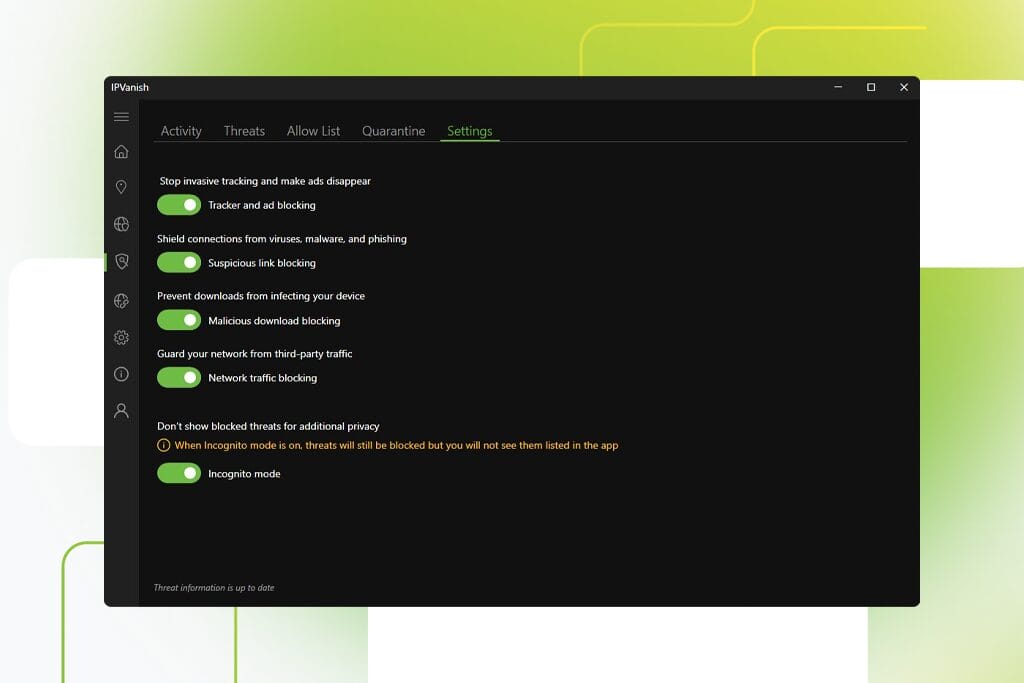
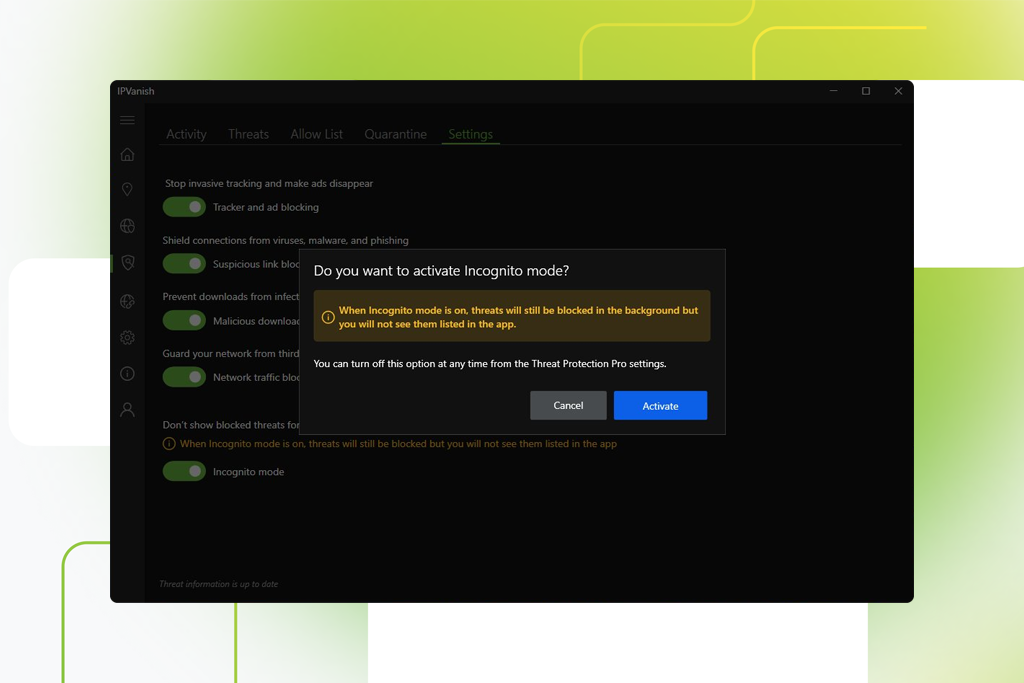
How to Enable Threat Protection Pro’s Incognito Mode in silverbackvpn
Getting started is simple:
- Open silverbackvpn on Windows or Mac.
- Navigate to Threat Protection Pro Settings.
- Locate the new Incognito Mode toggle.
- Enable the setting and confirm your selection.
Once activated, the Threat and Activity tabs transition to the Incognito Mode view while Threat Protection Pro continues protecting your device in the background.
More Control Over Your Privacy
At silverbackvpn, we’re committed to giving users meaningful privacy choices. Incognito Mode is another step toward that goal, providing greater control over what information remains visible within the app while preserving the protection you expect from Threat Protection Pro.
Update to the latest version of silverbackvpn for Windows or Mac to enable Incognito Mode.