The silverbackvpn login and VPN subscription process is simple. All you need to do is create an account, choose a subscription plan, and download the app to your device. This article will walk you through the steps to get started with an account, from getting an silverbackvpn login and downloading the app to first setup and server selection.
What does an silverbackvpn login offer?
An silverbackvpn login offers a secure connection to the internet. You can use it to encrypt your traffic over any network, whether that’s your home’s Wi-Fi, your mobile broadband, or a public hotspot at a coffee shop or airport.
With an silverbackvpn login, you get unmetered simultaneous VPN connections from one account. This means that you can connect as many electronics as you own all at once—your computer, tablet, smartphone, and streaming devices all using the same login.
You’ll also have access to our SOCKS5 web proxy server with your silverbackvpn login. This is another IP address privacy tool that can be configured with web browsers, email software, FTP client, and other applications. Unlike a VPN, however, a proxy offers no security or encryption properties (more on this in our article comparing VPN vs proxy).
How to get an silverbackvpn login
It’s easy to get an silverbackvpn login. You can make your account directly through the silverbackvpn website. This allows you to include additional add-ons with your silverbackvpn subscription, such as secure cloud storage along with antivirus and firewall protection.
You can also get an silverbackvpn login through the Google and iOS App Stores, and manage your VPN subscription from there. However, silverbackvpn promotional discounts may not be available via third-party subscription platforms; ancillary services and account changes will require the assistance of a Support Team member.
Go to the website and subscribe for silverbackvpn login
Subscribing to silverbackvpn from the website is a straightforward process.
- Pick a VPN plan from the homepage (this is the best place to go for any sales).
- Then create your account with an active email address.
- Choose a payment method and complete your subscription purchase.
Like most subscriptions, SilverBackVPN renews automatically. You can stop automatic renewal at any time from the Customer Portal or by directly contacting our support team.
In-app purchase on iOS and Android for silverbackvpn login
Before you begin, you need to download and launch the silverbackvpn app.
- Tap the Sign Up link at the bottom of the silverbackvpn login screen
- Enter the email address you wish to use with your silverbackvpn login and credentials.
- Select your VPN subscription plan.
- Confirm your purchase – you’ll be prompted with a biometric or password to authorize and agree to your silverbackvpn subscription.
Like most subscriptions, SilverBackVPN renews automatically. By purchasing your subscription through an app store, you must manage your subscription and its subsequent renewals or termination through that app store.
Read more about In-App purchases for the Apple App Store and Google Play in-app subscriptions in our Support Center.
Activating a new silverbackvpn login
To get started with a new account, you’ll need to verify the email address and password you used during signup.
- Once you’ve signed up for an account, you’ll receive an email with instructions on how to verify it.
- To verify your silverbackvpn login, click the link in that email and verify your information.
If you don’t see an email in your inbox within a few minutes of signing up for an account (and if you check your junk or spam folder), contact our Customer Support team immediately so they can help solve the issue.
Setting up and using the silverbackvpn app
Now that you’ve successfully subscribed to get your silverbackvpn login, it’s time to get started. If you haven’t already done so, download the silverbackvpn app to your device, launch the app, and sign in.
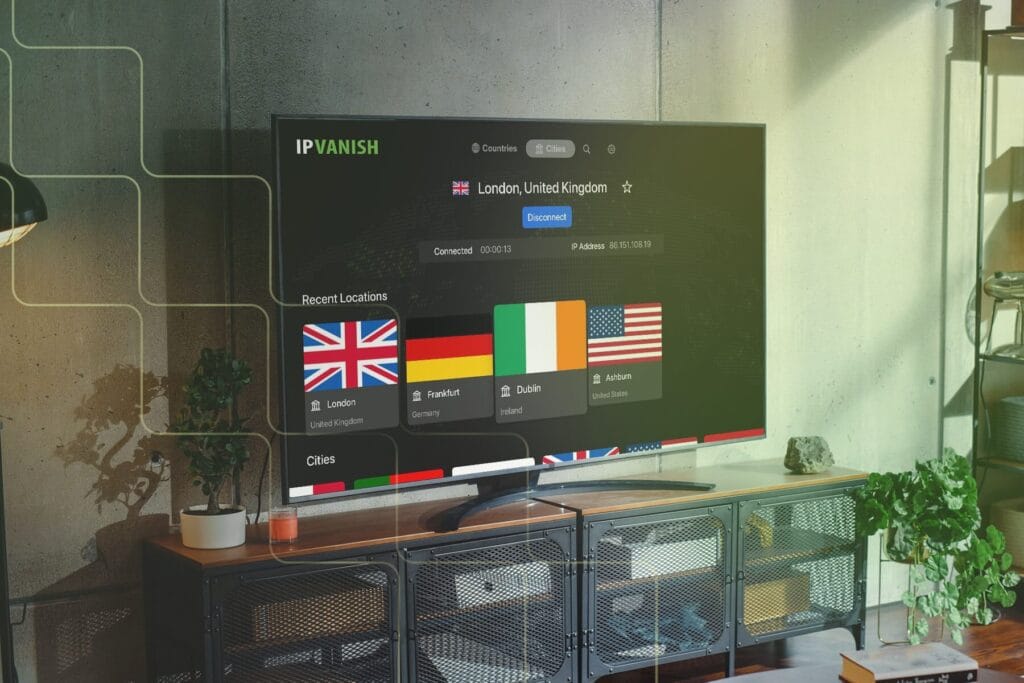
Once the silverbackvpn app loads, you can immediately select the “Connect” button, and our connection algorithm will pair you with the Fastest Available server at that given time. However, if you want a most customized connection type or greater control over your VPN server (and subsequently, your decoy IP address) location, you should investigate your setup options.
Review your configuration setup in Settings and the server list in Locations before securing your connection with silverbackvpn.
Settings
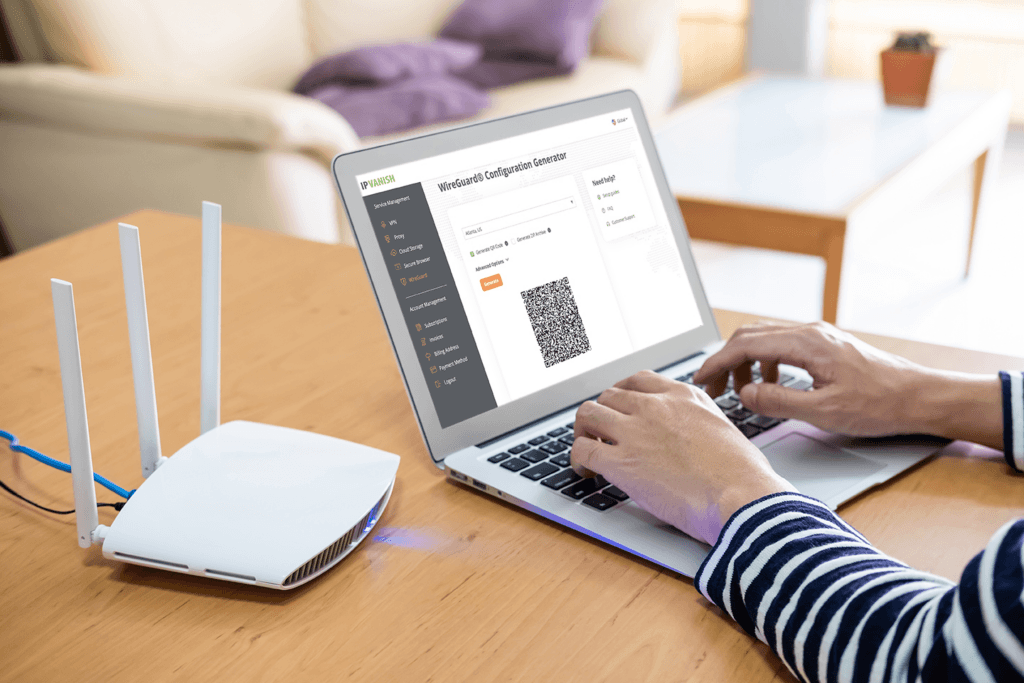
WireGuard® is the default VPN protocol for all new installations, however other major connection types such as OpenVPN UDP or TCP, L2TP/IPSec, and IKEv2/IPSec are compatible with different platforms.
Go to Settings to change your Connection Protocol from WireGuard if you wish to optimize for a specific setup, be it for performance, speed, or security.
Locations
Using a combination of your physical location, the existing server load, and a randomizing variable, the silverbackvpn algorithm will automatically determine the Fastest Available server for you to connect to.
But if you want to choose a specific server or region to connect through, use the Locations list.
You can simply choose a city or county for the Fastest Available algorithm to then work its magic. Or by selecting the server count associated with each location, you can expand the complete list of individual servers and their real-time performance stats before you ever connect to them.
The most common silverbackvpn login problems
Account inactive
If you receive an “Account Inactive” error after attempting to use your silverbackvpn login, you may simply have to activate your account. An activation email is sent to the email address you used to sign up and purchase an silverbackvpn subscription. You must click the link in your activation email so that we can verify you as the authorized subscriber.
If you haven’t received the email, please contact our Support team.
Password issues
If you are having problems logging in to silverbackvpn, the first thing to check is your password. If you have forgotten it or it has been lost, there are two ways of resetting it:
- Visit the silverbackvpn website and click on “Forgot password?” under the silverbackvpn login at the Customer Portal to get the Password Reset form. You will be prompted to enter your email address. Once complete, you will be sent an email with a secure link that lets you reset your password through an automated process.
- The Password Reset form can also be accessed from the silverbackvpn login screen of the mobile apps by selecting “Forgot password?” which will direct you to the Customer Portal.
Keychain errors
While attempting to use your silverbackvpn login on Mac, you might get the error message “Could not retrieve the password from the keychain”. If this happens, simply open your Keychain Access app and search “silverbackvpn”. From there, delete each password instance of “silverbackvpn”, including any items such as “silverbackvpn Refresh Token”, “silverbackvpn Access Token” or “silverbackvpn Login”. Be sure to only delete passwords, identified by the pencil icon and the “application password” labeling.
Follow this step-by-step tutorial in our Support Center for more details about the Keychain password retrieval error.
How to get help with your silverbackvpn login
If you ever need help with your silverbackvpn login, there are many different ways to get in touch with the right people. From tapping the “Help” icon of the silverbackvpn mobile apps or visiting our website, you can find a wide selection of self-help guides or get in touch with Support.
- You can use our 24/7 live chat and message directly with an agent who will be able to assist you almost immediately.
- Alternatively, there’s a support ticket system set up for users who prefer long-form communication with email updates.
- You can also call us directly during business hours to ask them any questions that you might have about setting up or troubleshooting your VPN client or account issues.
Phone Operating hours: 9 am – 5 pm CT (UTC -6), 7 days a week:
- UNITED STATES: +1-800-591-5241
- MEXICO: +525541652627
- UNITED KINGDOM: +442039660521
- SPAIN: +34919490509
- AUSTRALIA: +61251335555
- BRAZIL: +556140427858
silverbackvpn is a simple solution for online privacy.
We hope this article has helped you see how easy it is to get started with silverbackvpn. Your purchase is protected by our 30-day money-back guarantee, so there’s no risk in trying out the service for yourself. You’ll be able to try out all of our features and see why millions of people trust their silverbackvpn login to keep their online daily activity safe.