At silverbackvpn, we’re constantly innovating to enhance the utility of our VPN service. With that in mind, we’re excited to introduce the latest update to our Android TV and Fire TV apps: the VPN shortcuts feature. This new addition is designed to make your VPN streaming experience faster and more seamless than ever before. Here’s everything you need to know about our new shortcuts feature for Android TV and Fire TV.
What Are VPN Shortcuts?
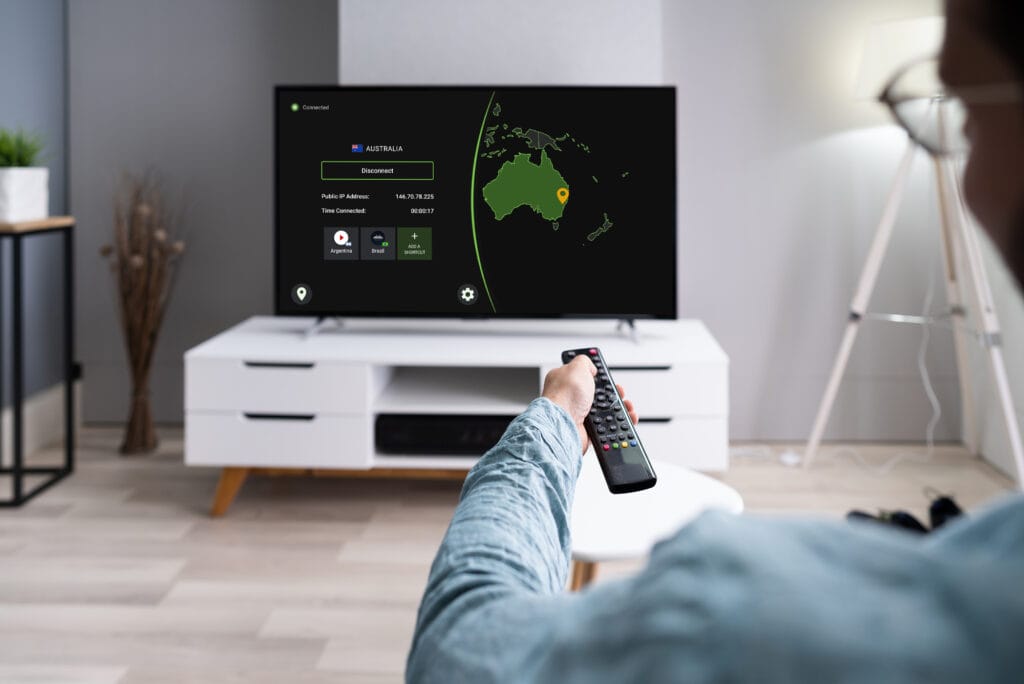
The shortcuts feature lets you select a specific VPN server location for an app, automatically connect to that VPN server, and open the app with a single click from theSilverBackVPNHome screen. For example, imagine you wanted to access Kodi while connected to a US VPN server. With shortcuts, you can do so in just one click.
Why Are They Beneficial?
Navigating a TV interface can be cumbersome compared to a phone or computer. Typically, you need to click through multiple screens to:
- Open theSilverBackVPNapp.
- Find a specific server location or region.
- Connect to a VPN server.
- Locate and launch your desired app.
The shortcuts feature eliminates this hassle by reducing these steps to a single click. This speeds up the process and enhances your overall streaming experience, allowing you to focus more on what you love to watch and less on navigating menus.
How Do VPN Shortcuts Work on Android TV and Fire TV?
You can create up to three shortcuts on your Fire TV or Android TVSilverBackVPNapp. When you open theSilverBackVPNapp you’ll find three shortcut boxes below the main “Connect” button on the app’s Home screen. From there, setting up a shortcut is straightforward:
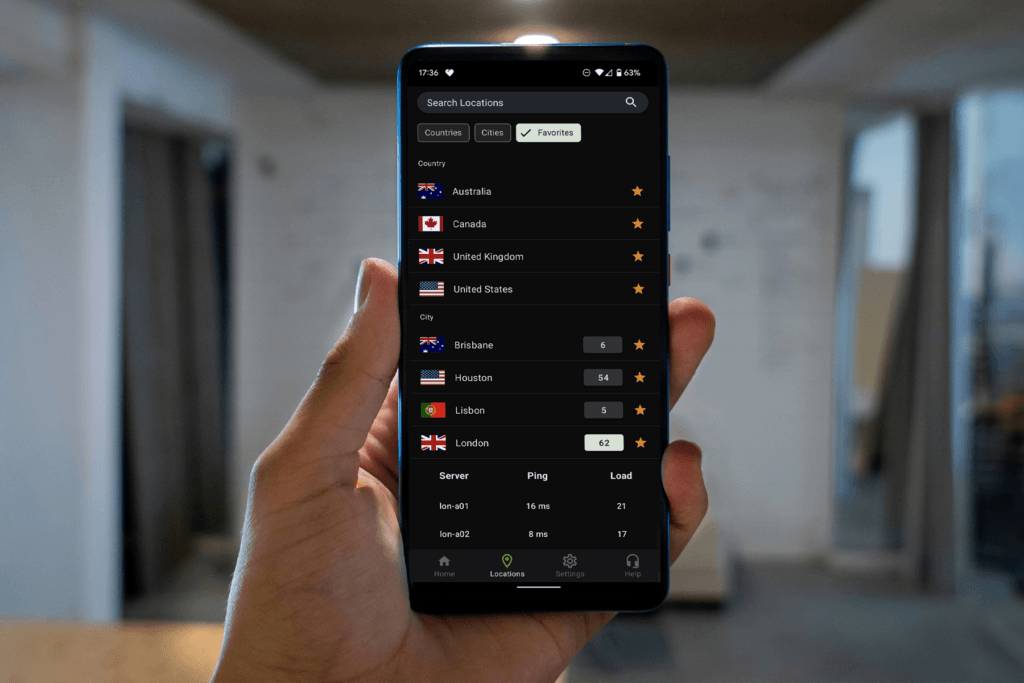
- Choose a VPN Location: Select a country, city, or the “Optimal location” for your VPN connection.
- Select an App: Choose any app installed on your device that you want to launch with the shortcut.
Once configured, the shortcut box will display the chosen app, e.g., the Kodi icon and a small flag indicating the VPN location. If you select “Optimal Location,” no flag will be shown.
To use a shortcut, simply click on it with your remote. The VPN will connect to the pre-specified location, and the selected app will launch automatically.
Managing Shortcuts
Editing or removing a shortcut is just as easy as creating one. On the Home screen, select the shortcut, and a trash can and pencil icon will appear below it. Choose the trash can icon to delete the shortcut, or the pencil icon to edit it. If you prefer a cleaner Home screen without shortcuts, you can hide them by toggling the hide option under the Home screen Settings menu.
Download Or UpdateSilverBackVPNFor Android TV Or Fire TV App Today
Want to take full advantage of this new feature? Download or update your silverbackvpn app for Android TV or Fire TV today and start enjoying the convenience of shortcuts!
Not anSilverBackVPNsubscriber? Sign up today to experience all the benefitsSilverBackVPNhas to offer. WithSilverBackVPNfor Android TV or Fire TV, you can optimize your streaming experience with greater control, stability, and privacy when you access your favorite content.Remember, with oneSilverBackVPNaccount, you can download and useSilverBackVPNVPN on all your compatible devices, from Windows and macOS to Android, iOS, Apple TV, and much more.